Welcome to Elderfield Save File Location & Recovery
Last updated: 2026-09-14 · 8 min read
The single most useful thing on this page: your saves are not in your Documents folder and not in AppData. They sit inside the game's own install directory, which means reinstalling the game can take them with it. Find the folder, copy it, and you will never lose a run to a crash again.
Your saves are in a folder called save inside the game's install directory — by default ...\Steam\steamapps\common\Welcome to Elderfield - Full Game\save\. In Steam, right-click the game, choose Manage, then Browse local files, and open the save folder.
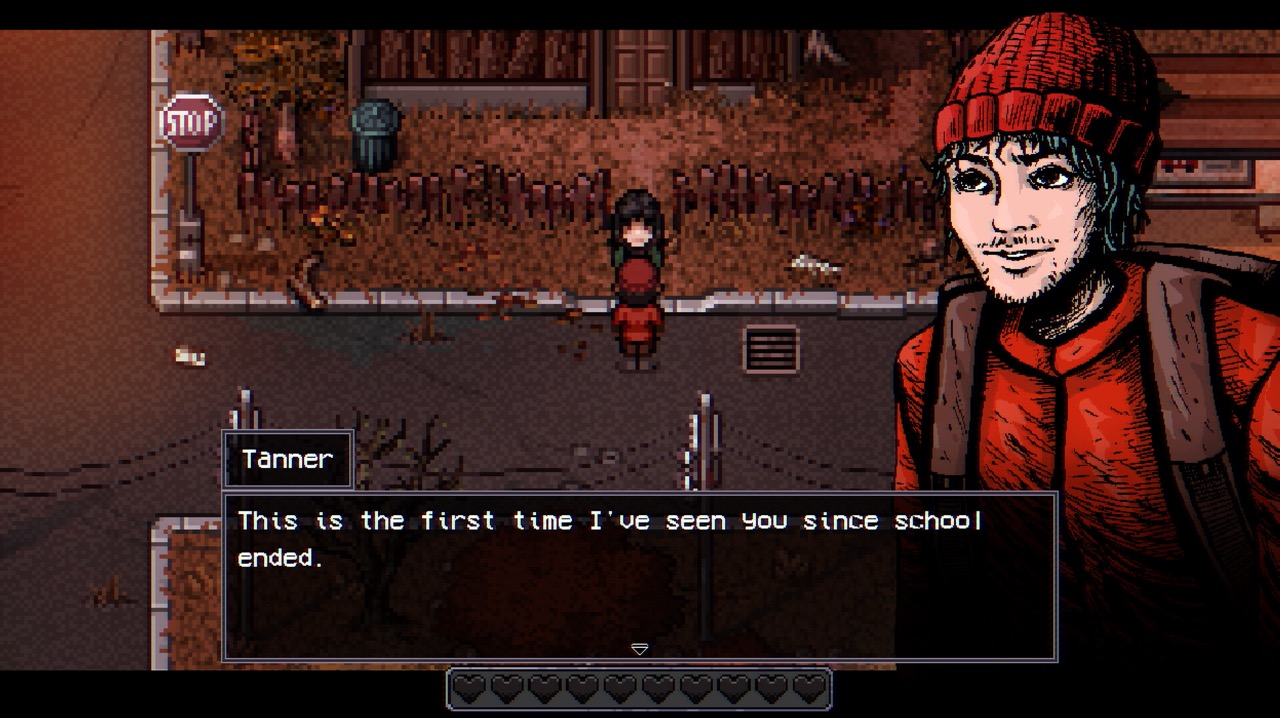
FIG. 01 — Save slots are one file each; the load screen list is built from an index file.
What Each File in the Save Folder Does
The save folder is not a single blob. It holds one file per slot plus an index that builds the list you see on the load screen. Knowing which is which is the difference between "my save list is empty" being a disaster and being a ten-minute fix.
| File | What it is | If it breaks |
|---|---|---|
file0.rmmzsavefile1.rmmzsavefile2.rmmzsave… | One file per save slot. Your actual progress. | Only that slot is lost. Other slots still work. |
global.rmmzsave | The index file that builds the save list on the load screen. | Your saves still exist but no longer appear. This is the recoverable case. |
config.rmmzsave | Graphics, audio and keybind settings. | Settings revert to defaults. Not progress. |
That middle row is the important one. If you open the load screen and it is empty, that is usually the index file failing, not your progress disappearing — and the developer has published a fix.
Back Up in Thirty Seconds
Do this before you experiment with anything else on this site, and again before you take a long session you would hate to repeat.
- Right-click the game in Steam → Manage → Browse local files.
- Open the
savefolder. - Copy the entire folder — not individual files — to somewhere outside the game directory, such as your desktop or a second drive.
- Name the copy with a date so you can tell versions apart.
That is the whole procedure. It works because the game reads plain files from a folder; there is no account-side encryption to work around. Restoring is the same operation in reverse: quit the game, paste your backup's contents back over the save folder, then load.
Steam Cloud: Supported, With Two Real Traps
Welcome to Elderfield supports Steam Cloud, which the store's metadata confirms. Cloud saves are genuinely useful here, but the developer has described two ways they can actively cost you progress, and both involve the demo.
The developer's own wording: if your demo save was backed up to the cloud and you synced to a cloud save without it syncing from the full game, it may have restored the demo save from the cloud. In other words the cloud can put an old demo file back on top of real progress.
The same mechanism hits config.rmmzsave. If your settings reset on every launch and you played the demo, this is the cause. The developer's advice is to disable cloud saves on both the full game and the demo until the problem stops.
If you never played the demo, you can treat cloud saves as a convenience. If you did, the safest configuration is to keep a manual backup on disk and treat the cloud copy as secondary rather than as your only protection.
FIG. 02 — Backing up first is what makes this recovery procedure safe to attempt.
Recover a Save That Vanished From the Load List
This is the developer's published recovery procedure for a corrupted index file, and it works by making the game generate a fresh, correctly-sized index and then dropping your real save data back into it. Follow the order exactly — it matters.
- Back up the save files in your
savefolder (file0,file1, and so on) somewhere safe. Do not skip this. - Delete the
savefolder. - Launch the game.
- Start a new game.
- Save at the bed enough times to match your old slot count. If your highest slot was
file9, save into the first nine slots. - Close the game.
- Paste your backed-up
file0,file1… into the new save folder, overwriting what is there. - Load the game again.
The developer explains why this works: creating those dummy saves generates a new global file with the correct number of slots. Your real saves then become visible again because the index now expects them.
One, the save list may temporarily show wrong play times for your restored slots. The developer says this corrects itself after you load each save once. Two, if a slot refuses to load and you used dummy saves to create it, make sure you overwrote with your own file rather than leaving the placeholder in place.
A Save Shows in the List But Will Not Load
There is a second failure mode with a completely different cause, and it is not recoverable. If your save appears in the list but clicking Load does nothing at all, the developer's explanation is that the save is too old: it predates the save-format change that shipped in May 2025, and the current build cannot read it.
In practical terms, any save made before that update is dead. If you are returning from a long break to a save that will not open, this is why, and no amount of file shuffling will bring it back. Start a new run, and take the backup habit from this page with you.
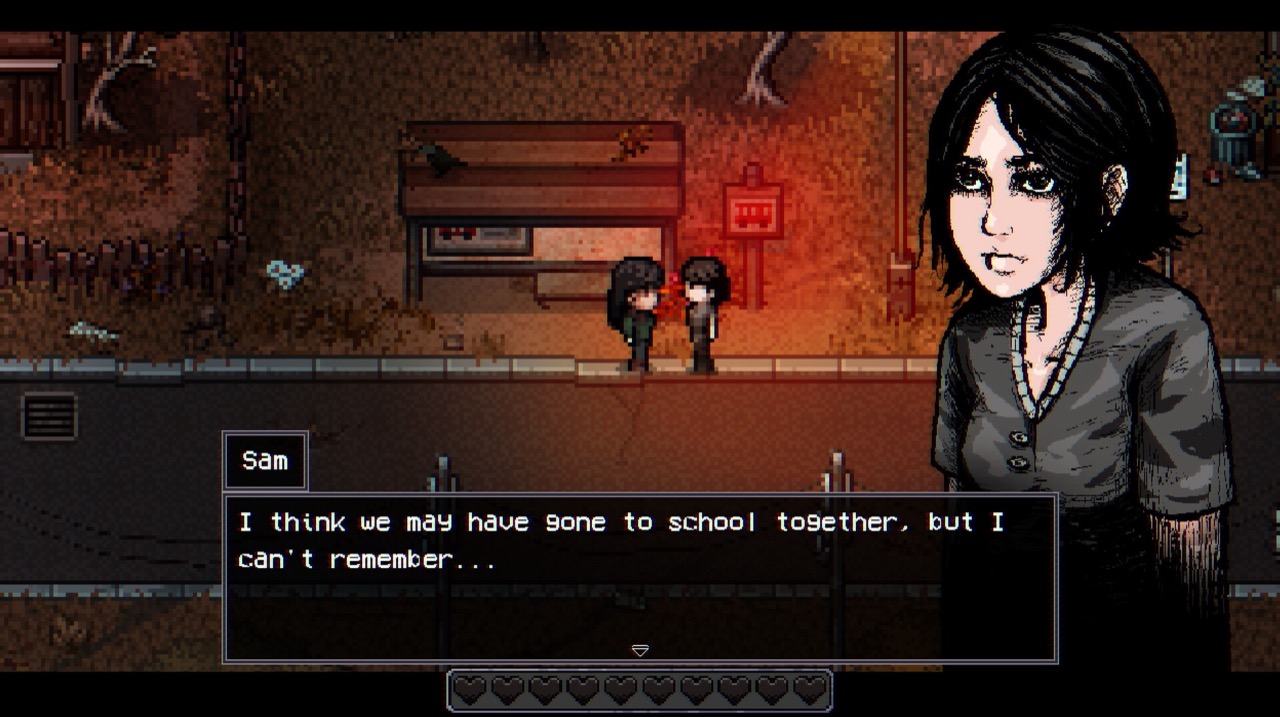
FIG. 03 — Copying the whole save folder moves progress and settings together.
Moving a Save to a Different Install
The developer's instruction for migration is refreshingly direct: if the full game is installed somewhere else, open the old install directory, copy the save folder, and paste it into the new install directory. That covers moving from a demo install to the full game, and moving between drives.
Because saves are just files in the install folder, this is also what makes the backup above possible. It is a simple system, and it is worth knowing that the simplicity cuts both ways — anything that deletes or reinstalls the game folder takes the saves with it.
Where Your Settings Live
Settings are stored in config.rmmzsave, also inside the save folder. The developer has confirmed this explicitly when people asked where the game settings file is. If you want to carry your keybinds and display settings to another machine, copy that file too.
One quirk worth knowing: if that file gets locked by a cloud sync or is otherwise lost, the game will rebuild a default one. That is the mechanism behind "my settings keep resetting", covered in the troubleshooting guide.
What Does Not Exist (So You Can Stop Looking)
Two things people frequently ask about, and the honest answers:
- There is no automatic
.bakor.oldbackup of your saves. No such mechanism appears in the developer's guidance or in save-related error reports. The only underscored variant seen in practice is a temporaryglobal.rmmzsave_left behind when the file is locked — that is a lock artefact, not a backup you can restore from. - There is no AppData or LocalLow save path. Saves are not in
%USERPROFILE%\AppData\LocalLow. The only AppData location connected to the game is RPG Maker MZ runtime data under%LOCALAPPDATA%\rmmz-game\User Data\, which holds crash logs rather than progress. Do not go looking for your save there.
Most games in this genre do keep saves under AppData, and most guides you will find assume that. Following that advice here means backing up an empty folder while your real saves sit one directory away in the install folder.
How Saving Actually Works In-Game
The game saves from your home, which the official wiki describes as the central hub where you can save, bathe to heal, and sleep. You are not relying on an autosave: saving is something you do deliberately at the bed.
That makes the backup habit more valuable rather than less. There is no rolling autosave generating recovery points behind you, so the copy you made before a bad fight is the only copy you have.